Every form response becomes a finished document
Choose how answers should look on paper. FormsBat fills the document for each response, names it, saves it to your Drive and attaches it to emails, so nobody has to copy answers by hand again.
- PDF or Word (.docx)
- Saved to your Drive
- Your own templates on Pro
From answers to paperwork, automatically
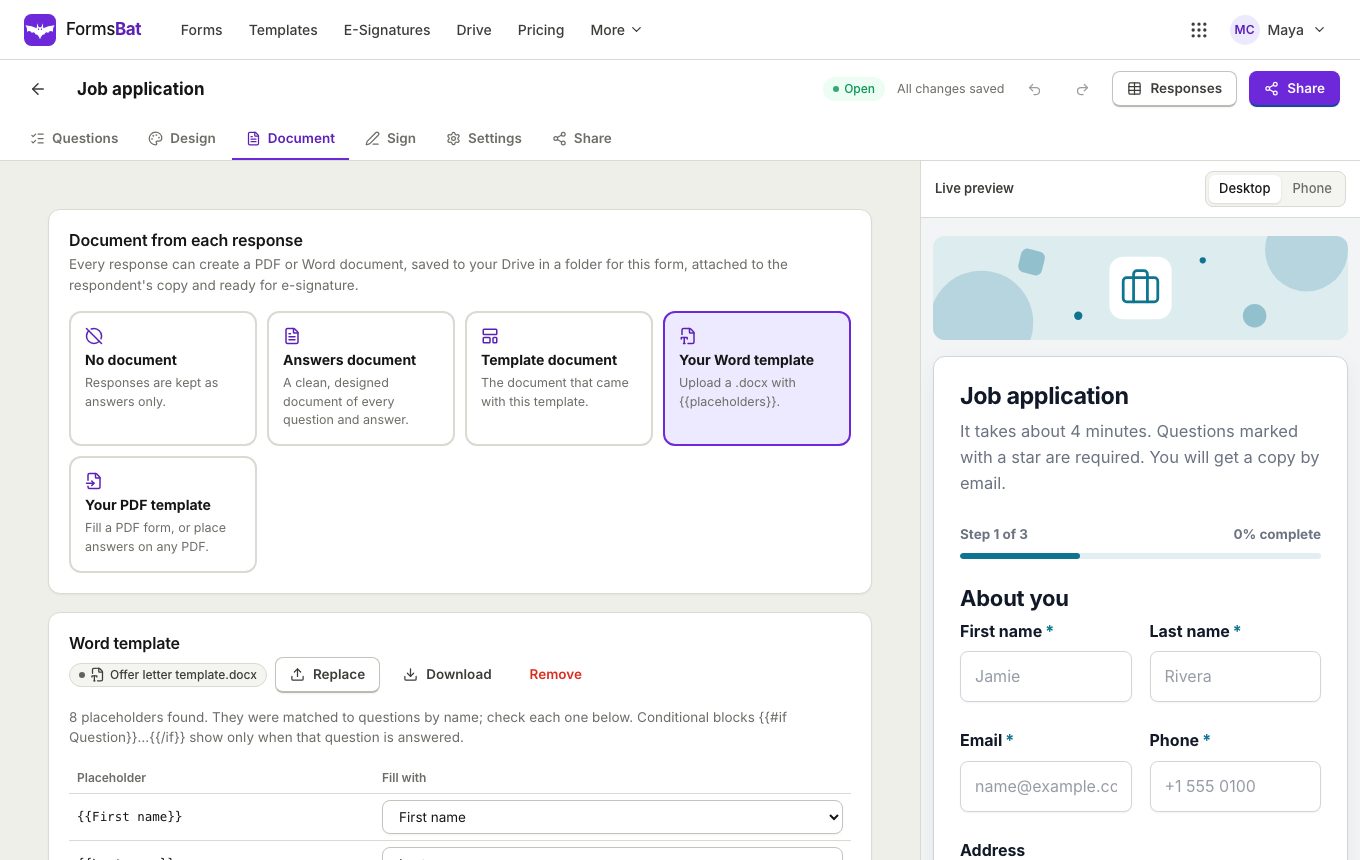
Most forms end with someone copying answers into a document: an application summary, a signed consent, an order confirmation. FormsBat does that step for you. In each form's document settings you choose a document, and every new response fills it the moment it is submitted.
The finished file is a PDF or a Word (.docx) document. It is named with a file name pattern you set, such as the person's name and the date, and saved to your Drive in a folder for that form. You can download it from the response, regenerate it if you change the template, and send a copy to the respondent with their confirmation email.
If the document needs a signature, the same file can go straight to e-signature once the form is submitted.
Why teams let FormsBat write the documents
No more copy and paste
The document is filled the moment someone submits, with the right answer in the right place every time.
Four ways to design it
A designed answers document, a template's own document, your own Word template or your own PDF template.
Organised in Drive
Each form gets its own folder, and every file is named with your pattern so it is easy to find later.
Sent with the confirmation
Respondents can get a copy of the generated document attached to their confirmation email.
Preview before you share
Download a sample document filled with made up answers to check the layout before the form goes live.
Set up a document in 3 steps
- 1
Pick a document type
Open the form's document settings and choose a designed answers document, the template's document, or upload your own Word or PDF file.
- 2
Connect the answers
Type {{Question label}} placeholders in your Word file, map PDF fields to questions, or click to place answers on a flat PDF.
- 3
Preview and publish
Download a sample document with made up answers, set the file name pattern, then share the form. Each response creates its own file.
Document options
Designed answers documents and template documents are on every plan. Uploading your own Word or PDF templates is a Pro feature.
- Designed answers document
- A clean layout of every question and answer in one of 5 designs: Classic, Modern, Minimal, Elegant or Bold, in any accent colour.
- Template documents
- Many of the form templates come with a matching document, such as an application summary or a consent record.
- Your own Word template
- Upload a .docx with {{Question label}} placeholders. FormsBat replaces each one with the answer and keeps your fonts, tables and layout.
- Placeholders that survive Word formatting
- Word sometimes splits a placeholder across bits of formatting. FormsBat still finds it and fills it in.
- Conditional blocks
- Wrap text in {{#if Question}} and {{/if}} so a paragraph only appears when that question has an answer.
- Fillable PDF templates
- Upload a PDF with form fields, match each field to a question, and optionally flatten the result so it cannot be edited.
- Flat PDF templates
- Got a scanned or flat PDF? Click on the page to place each answer exactly where it belongs.
- PDF or Word output
- Generate a PDF for a fixed layout, or a Word (.docx) file when someone needs to keep editing it.
- File name patterns
- Name files with answers and dates, for example the applicant's name followed by the submission date.
- Drive folder per form
- Documents are saved to your Drive in a folder for each form, and count toward your storage.
- Download and regenerate
- Download any response's document, or regenerate it after you change the template.
- Signature stamping
- A drawn signature answer can be stamped into the document where the template says {{signature}}.
Writing a Word template
A Word template is an ordinary .docx file. Write the text you want, and wherever an answer should appear, type the question label in double curly braces. For example, a rental summary might say:
Applicant: {{Full name}}fills in the answer to the Full name question.Move in date: {{Move in date}}fills in a date answer.{{#if Pets}}Pets: {{Pets}}{{/if}}shows the pets line only when someone answered it.{{signature}}marks where a drawn signature or an e-signature field should go.
Upload the file in the form's document settings and press Download a sample document to see it filled with made up answers before any real response arrives.
Who uses form documents
- Recruiters who want a one page application summary for each job applicant.
- Landlords who keep a filled rental application PDF on file for every applicant.
- Clinics and studios that need a signed consent form record.
- Service businesses turning a client intake form into a tidy client file.
- Developers who download each document through the forms API.
Frequently asked questions
Is the generated document a PDF or a Word file?
Your choice. Each form can produce a PDF or a Word (.docx) document for every response.
Can I use my own Word or PDF template?
Yes, on Pro. Upload a .docx with {{Question label}} placeholders, a fillable PDF whose fields you map to questions, or a flat PDF where you click to place answers. The free plan includes designed answers documents and template documents.
What if Word splits my placeholder into pieces?
That happens when part of a placeholder has different formatting. FormsBat still recognises the placeholder and fills it in.
Where are the documents stored?
In your FormsBat Drive, in a folder for each form. You can also download them from the response view or through the API.
Can the respondent get a copy?
Yes. Turn on the copy to the respondent in the form settings and the generated document is attached to their confirmation email.
Can I check the layout before the form is live?
Yes. Press Download a sample document to get the document filled with made up answers.
What happens if I change the template later?
New responses use the new template. For older responses, open the response and regenerate its document.
Related features and use cases
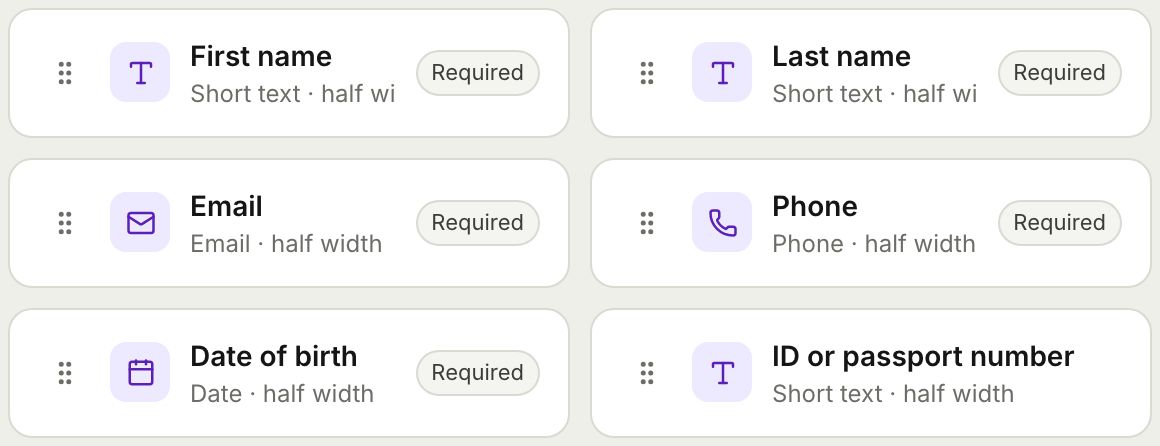 Form BuilderBuild forms and surveys with 18 question types, multi page layouts, conditional logic, validation, 8 themes and a live preview.
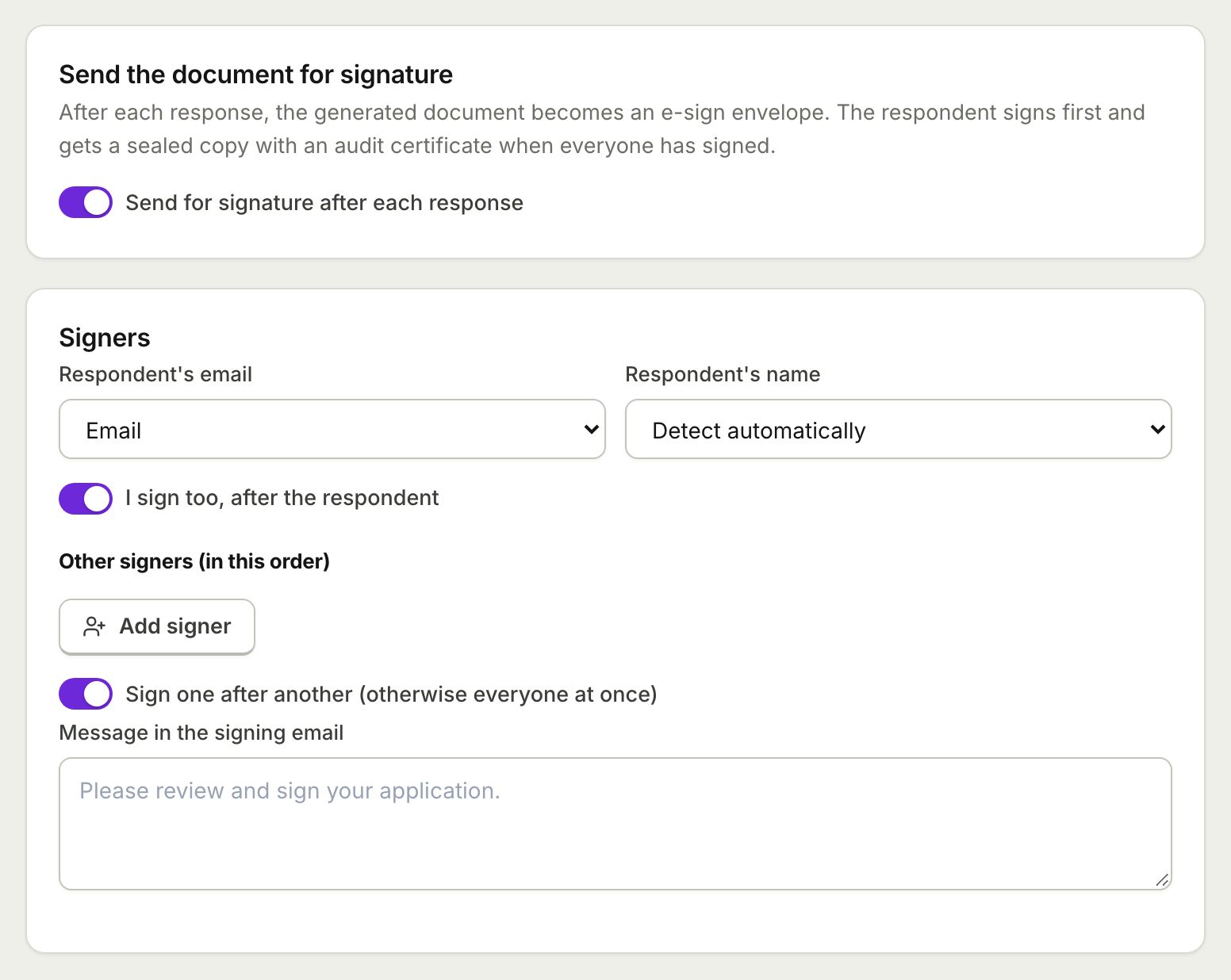 E-Sign from FormsSend the document each response creates for e-signature: the respondent signs from the thank you screen and everyone gets a sealed PDF.
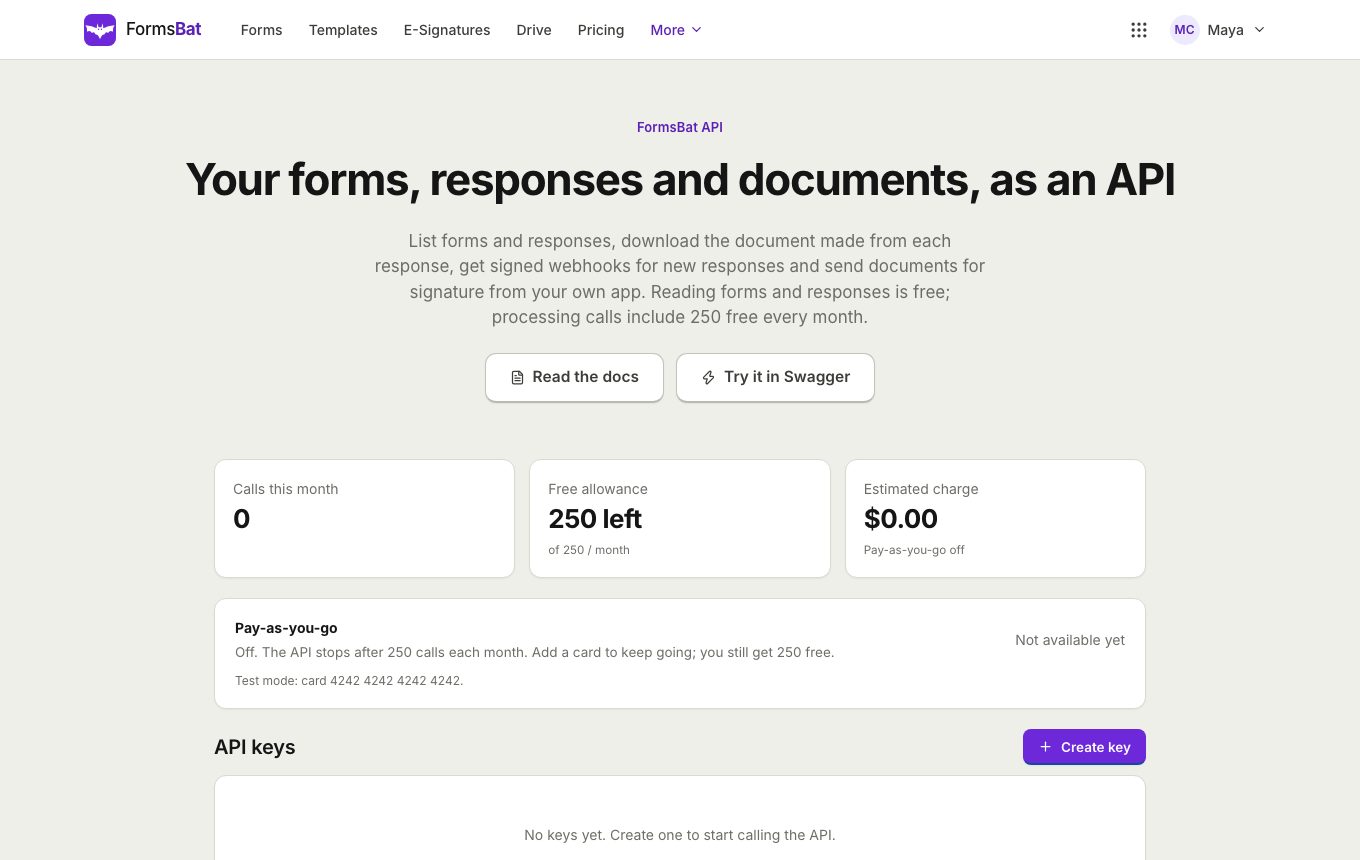 Forms API and WebhooksRead forms, responses and generated documents with a REST API, get signed webhooks for new responses, and connect AI assistants over MCP.
 Rental Application FormTake rental applications online with ID uploads and references, get a filled PDF per applicant, and send it for signature.
 Job Application FormCollect applications with CV uploads and screening questions, and get a tidy application document for every candidate.
 Consent Form with SignatureCollect consent online with a drawn signature or a full e-signature, and keep a sealed PDF record of every agreement.
Let your forms write the paperwork
Create a free account, build a form and download a sample document in minutes. Upgrade to Pro for $4 a month to use your own Word and PDF templates.